
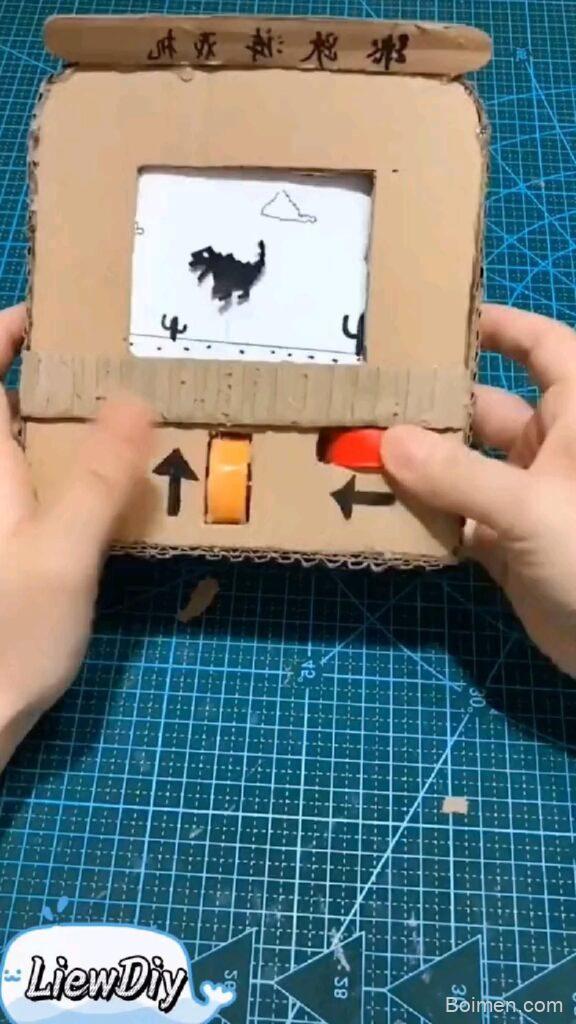
Google has quietly turned its search box into a playground, and most people walk right past it. These seven hacks each take under two minutes, but they'll change how you think about the little white box you use every day.
Advertisements1
- Google's search box hides at least a dozen playable Easter eggs, all free and account-free.
- The offline dinosaur game is cached in Chrome and works with zero internet connection.
- Exact phrases like "do a barrel roll" and "askew" trigger page animations — extra words break them.
- Solitaire, tic-tac-toe, timers, and dice rollers all run right inside search results.
- The Doodle archive at google.com/doodles keeps old interactive games playable years later.
- None of these save your progress — leave the tab open if you need to step away mid-game.
Why Google Turned Its Search Box Into a Toy
Think of Google's search engine like a Swiss Army knife you've only ever used for the bottle opener. Underneath the results page is a set of Easter eggs, mini-games, and interactive widgets that engineers built for fun — things like the dinosaur runner that appears when your Wi-Fi dies, the spinning barrel roll you can trigger from the search bar, and the built-in solitaire and tic-tac-toe boards.
These aren't random pranks. Google uses them to test how its interface handles interactive content and to keep people engaged when a page fails to load. For you, that means free entertainment with zero downloads and no accounts. The trick is knowing the exact phrases and settings that unlock each one.
A quick warning before you dive in: some of these only work in certain browsers or on desktop, so if something doesn't appear, don't assume it's broken — try a different device or check that you're on the main Google search page, not a country-specific variant that may not support it.
1. Wake the Dinosaur When the Internet Dies
Disconnect your Wi-Fi, then try to load any website in Chrome. You'll meet a pixelated T-Rex that starts running the moment you press the space bar. Jump over cacti with the space bar or up arrow, and duck under flying pterodactyls with the down arrow. The longer you survive, the faster it gets.
Why it works: Chrome caches this game locally, so it runs even with no connection at all. It's a clever way to turn a frustrating moment into a tiny distraction. I once played it for six minutes in a coffee shop while waiting for the router to reboot — my high score was 847, and I'm not proud of how much I cared.
Common mistake: people mash the space bar before the page fully loads the error screen, which just refreshes the page. Wait for the little dinosaur to appear first, then press space once.
2. Type "Do a Barrel Roll" and Watch the Page Flip
Go to google.com and search the exact phrase "do a barrel roll." The entire results page rotates 360 degrees, like a sheet of paper doing a cartwheel. It takes about a second, and then everything settles back to normal.
Why it works: Google built a CSS rotation animation that triggers when it detects that specific query. It's a nod to the classic Star Fox video game line, and it's been live for over a decade. Try "askew" too — that one tilts the whole page slightly, like a picture frame hung by someone in a hurry.
Common mistake: typing it into the address bar instead of the search box, or adding extra words. The trigger needs to be the exact phrase as your search query. Also, if you have reduced-motion settings enabled on your device, the animation may be skipped entirely — that's a feature, not a bug.
3. Play Solitaire and Tic-Tac-Toe Without Leaving Search
Search "solitaire" and Google serves up a fully playable card game right in the results. Search "tic tac toe" and you get a board where you can play against the computer at easy, medium, or impossible difficulty. Both load instantly and need no login.
Why it works: Google embeds these as interactive widgets directly in the results page, so there's no app to install and no ads interrupting your game. The solitaire version even tracks your score and lets you undo moves. I use it as a two-minute brain reset between meetings — it's the digital equivalent of doodling on a notepad.
Common mistake: expecting your progress to save. Close the tab and your game is gone. If you're mid-win and need to step away, leave the tab open rather than refreshing.
4. Use the Timer and Stopwatch as a Kitchen Sidekick
Search "set a timer for 10 minutes" and a countdown clock appears at the top of the results with a start button. Search "stopwatch" for a running clock you can start, stop, and lap. Both work on mobile and desktop, and the timer will chime even if you switch tabs.
Why it works: Google reads the number and unit from your natural-language query and renders the right widget. It's faster than opening a separate app, which is why I use it constantly for steeping tea, timing pasta, and giving myself a 25-minute writing sprint.
Common mistake: assuming the alarm will fire if your phone is on silent or the tab is closed. Keep the tab open and check your volume first — a timer you can't hear is just a countdown to disappointment.
5. Flip a Coin or Roll Dice With a Single Search
Search "flip a coin" and Google gives you an animated coin you can flip with a click. Search "roll a die" or "roll two dice" for a virtual dice roller. Search "random number 1 to 100" and it generates one instantly.
Why it works: these are simple random-number generators dressed up as playful widgets. They're genuinely useful for settling decisions — who pays for coffee, which movie to watch, what to make for dinner. I've used the dice roller to assign chores to my kids, and somehow they trust a Google die more than their own father.
Common mistake: using these for anything that needs real randomness, like a lottery or a cryptography task. These are fine for fun, but they're not audited random sources. For serious decisions, use a proper random generator.
6. Search "Fun Facts" and Let Google Surprise You
Type "fun facts" or "I'm feeling curious" and Google serves up a card with a random trivia question and answer, plus a button to load another. It's an endless rabbit hole of odd knowledge — things like how long a snail can sleep or why flamingos stand on one leg.
Why it works: Google pulls from its Knowledge Graph, the same database that powers those info boxes beside search results. Each card is a small, sourced nugget, so you're actually learning something rather than just scrolling. I keep it open when I need a five-minute break that doesn't involve social media.
Common mistake: treating every card as gospel. Most are accurate, but trivia cards can lag behind new research. If a fact surprises you enough to repeat it at dinner, spend thirty seconds verifying it with a second search.
7. Turn Google Into a Pixel Art Canvas With the Doodle
Visit google.com/doodles to browse the archive of interactive Google Doodles — playable games, music tools, and animations released for holidays and anniversaries. The 2017 Pac-Man doodle, the 2018 Halloween wizard game, and the cricket game from the 2017 ICC Champions Trophy are all still playable.
Why it works: these are fully built mini-games made by Google's doodle team, archived so they don't disappear. Some, like the Champion Island RPG from 2021, take over an hour to finish. I stumbled on the cricket doodle during a slow afternoon and lost a genuinely embarrassing amount of time to it.
Common mistake: expecting every doodle to still work. Some older ones rely on plugins or features that browsers have since dropped. If one won't load, try a different browser before giving up — Chrome tends to have the best compatibility.
The Hacks, Step by Step
- 1Open the main Google search page
Go to google.com in Chrome or your default browser. Country-specific versions sometimes skip certain Easter eggs, so the plain .com page is your safest bet. - 2Disconnect your Wi-Fi to trigger the dinosaur
Turn off Wi-Fi, then try to load any site. When the error page appears, press space once and start jumping. This confirms your browser caches the game locally. - 3Search "do a barrel roll" exactly
Type the phrase into the search box with no extra words and press enter. Watch the page rotate once, then settle back. - 4Search "solitaire" or "tic tac toe"
Pick a game from the results widget and play directly in the page. No downloads, no logins, no ads mid-game. - 5Set a timer with natural language
Search "set a timer for 5 minutes" and press start. Keep the tab open and your volume up so the chime actually reaches you. - 6Flip a coin or roll dice for a quick decision
Search "flip a coin" or "roll two dice" and click the widget. Use it for low-stakes choices only, not anything needing true randomness. - 7Browse the Doodle archive
Visit google.com/doodles and filter by interactive games. Try the Pac-Man or cricket doodles first — they're the most reliable across browsers.
The best Google tricks aren't hidden in settings — they're hiding in plain sight, waiting for you to type the right six words.
Frequently Asked Questions
What is the Google dinosaur game and how do I play it?
The dinosaur game is an offline Chrome game that appears when your internet disconnects. Turn off Wi-Fi, try to load a page, then press the space bar to start jumping over cacti.
How do I make Google do a barrel roll?
Search the exact phrase "do a barrel roll" on google.com and the results page rotates 360 degrees. Extra words or typing it in the address bar won't trigger it.
Can I play solitaire directly in Google search?
Yes — search "solitaire" and a playable card game appears in the results. It needs no download or login, but your progress disappears when you close the tab.
Are Google Doodles still playable after they're released?
Most interactive Doodles stay playable in the archive at google.com/doodles. A few older ones may not load in every browser, so try Chrome if one fails.
Does the Google timer work if I close the tab?
No — the timer only chimes while the tab stays open. Keep it open and check your volume before relying on it.



Leave a Comment