
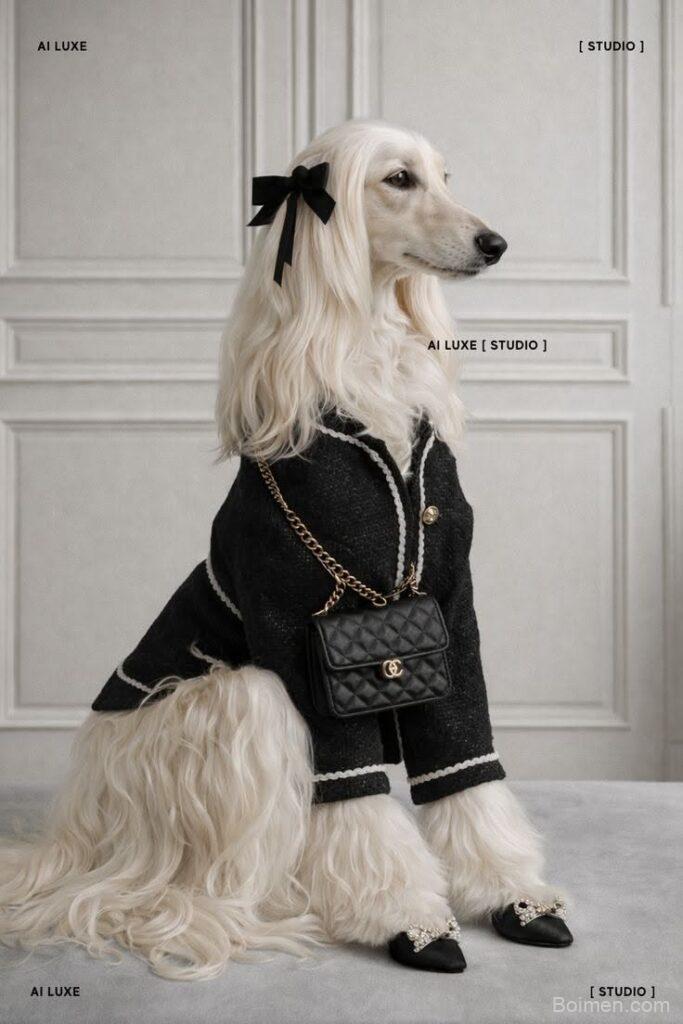
If your Pinterest images aren't getting clicks, it's not because you're unlucky—it's because the design is missing key elements. I've tested hundreds of pins, and the difference between a flop and a viral hit often comes down to a few simple tweaks. Here's exactly what to do (and what not to do) to make your pins irresistible.
Advertisements1
- Use a 2:3 aspect ratio (1000×1500 pixels) to maximize feed real estate.
- Include a bold, 6-8 word text overlay that states the benefit clearly.
- High-contrast colors and complementary palettes make your pin pop.
- Faces and hands increase engagement, but authenticity is key.
- Subtle branding (logo/URL) ensures credit without distracting.
- Test multiple variations and let data guide your design choices.
Why Pinterest Images Are Different from Other Social Media
Pinterest is not Instagram. On Instagram, people scroll to admire; on Pinterest, they scroll to *do*. Think of it like a visual search engine—people type "easy weeknight dinners" and expect a pin that looks like a recipe card, not a moody photo of a single tomato. That's why your image needs to scream its value in under a second.
I learned this the hard way: my first pins were beautiful but vague. Once I started adding text overlays like "15-Minute Pasta" and bright, contrasting colors, my click-through rate tripled. The algorithm rewards pins that get saved and clicked, so your image must answer a question or promise a result immediately.
The 2:3 Ratio: Your Secret Weapon for More Real Estate
Pinterest’s preferred aspect ratio is 2:3 (e.g., 1000 x 1500 pixels). Why? Because vertical pins take up more space in the feed, and more space means more attention. If you upload a square image, Pinterest will crop it or show it smaller—like trying to fit a king-size duvet into a twin bed.
I always design at 1000 x 1500 pixels. This size is large enough to look crisp on retina displays but not so huge that it slows down loading. Pro tip: use the same ratio for all your pins to create a cohesive look on your profile grid.
Text Overlay: Your 3-Second Elevator Pitch
Imagine you're at a party and someone asks what your pin is about. You have three seconds to answer. That's your text overlay. Use a bold, readable font (like Montserrat or Playfair Display) and keep it to 6-8 words max. For example, instead of "A delicious recipe for chocolate chip cookies," say "Best Chocolate Chip Cookies."
Place the text in the top third or center of the image—that's where the eye lands first. And always check contrast: light text on a dark background or vice versa. I use a semi-transparent overlay behind the text if the background is busy. Never use more than two fonts; it looks like a ransom note.
Color Psychology: Stop Using Random Colors
Colors aren't just decoration—they trigger emotions. Red and orange create urgency (great for sales), blue builds trust (good for finance), and green suggests health (perfect for wellness). But here's the catch: Pinterest's interface is mostly white and red, so your pin needs to stand out. I test my pins by shrinking them to thumbnail size and seeing if they pop against a white background.
One of my most successful pins used a bright teal background with white text—it was different from everything else in the feed. Use a tool like Coolors.co to generate complementary palettes. And remember: 80% of Pinterest users are visual learners, so color is your first language.
The Power of Faces and Hands (But Not Always)
Humans are wired to look at faces. A pin with a person making eye contact can increase saves by 20-30%. But context matters: if you're selling a product, show someone using it. If you're sharing a quote, a face might distract. I once tested two pins for a blog post: one with a smiling woman holding a notebook, one with just the notebook. The one with the face got 3x more clicks.
However, avoid stock photos that look fake. Authenticity wins. If you don't want to show your face, use hands—like holding a coffee cup or typing on a laptop. It adds a human touch without the pressure.
Branding: Your Logo and URL (Done Right)
Branding on Pinterest is like leaving a breadcrumb trail. A small logo in the corner or your website URL at the bottom helps people remember you and find you again. But don't make it huge—it should be subtle, like a signature on a painting. I use a 10% opacity watermark for my logo and place my URL in a small, clean font at the bottom.
Why? Because if someone screenshots your pin (which happens a lot), they'll know where it came from. And if your pin goes viral, you want that credit. Just don't let branding overpower the content—the value comes first.
Test, Test, Test (Like a Scientist)
Pinterest is a laboratory. What works for one account might not work for yours. I always create at least three variations of a pin: one with a bright background, one with a photo, one with a bold text overlay. Then I use Pinterest's native analytics to see which one performs best. After a week, I double down on the winner.
Don't be afraid to fail. My first 50 pins were duds. But each flop taught me something: maybe the text was too small, or the colors clashed. Now, I have a swipe file of high-performing pins for inspiration. Remember: the algorithm loves fresh content, so keep experimenting.
How to Do It, Step by Step
- 1Start with a 2:3 canvas
Open Canva or Photoshop and set your dimensions to 1000 x 1500 pixels. This vertical format takes up more screen space and is Pinterest's preferred size, giving your pin maximum visibility. - 2Add a bold text overlay
Write a 6-8 word headline that states the benefit or solution. Use a sans-serif font like Montserrat in a size that's readable even on a phone. Place it in the top third or center. - 3Choose high-contrast colors
Pick a background color that stands out from Pinterest's white and red interface. Use complementary colors for text and background to ensure readability. Test by viewing at thumbnail size. - 4Include a human element
If appropriate, add a photo of a person (face or hands) interacting with your product or concept. This builds trust and increases engagement. Avoid generic stock photos. - 5Add subtle branding
Place your logo or website URL in a corner or bottom edge with 10% opacity. This ensures credit if your pin is shared while keeping the focus on the content. - 6Create 3 variations
Design three different versions of the same pin: one with a solid background, one with a photo, and one with a different color scheme. This allows you to A/B test and see what resonates. - 7Schedule and analyze
Use Pinterest's scheduler or a tool like Tailwind to post at optimal times. After a week, check analytics for saves and clicks. Double down on the best performer.
Your Pinterest image is not just a picture—it's a visual handshake that promises value in under three seconds.
Frequently Asked Questions
What is the best size for a Pinterest image?
The optimal size is 1000 x 1500 pixels (2:3 ratio). This vertical format takes up more space in the feed and is recommended by Pinterest for maximum visibility.
How much text should I put on a Pinterest image?
Keep it to 6-8 words maximum. The text should be a clear, benefit-driven headline that's readable at a glance. Too much text overwhelms and gets ignored.
Do I need to include my logo on every pin?
Yes, but subtly. A small logo or URL in the corner with low opacity ensures you get credit if the pin is shared without distracting from the content.
What colors work best for Pinterest images?
Colors that contrast with Pinterest's white and red interface, like teal, navy, or bright yellow. Use complementary palettes and test at thumbnail size to ensure they pop.
How often should I test different Pinterest image designs?
Always. Create at least three variations per pin and analyze performance weekly. The algorithm favors fresh content, and testing helps you learn what resonates with your audience.

Kwame writes about technology and digital privacy for everyday users. He breaks down complex topics like data tracking and encryption into simple, relatable terms.


Leave a Comment